

Column moving
Change the order of columns, either manually (dragging them to another location), or programmatically (using Handsontable’s API methods).
Enable the plugin
To enable column moving, set the manualColumnMove configuration option to true.
A draggable move handle appears above the selected column header. You can click and drag it to any location in the grid.
/* file: app.component.ts */import { Component } from '@angular/core';import { GridSettings } from '@handsontable/angular-wrapper';
@Component({ selector: 'app-example1', template: ` <hot-table [settings]="hotSettings!" [data]="hotData"> </hot-table> `, standalone: false})export class AppComponent {
// generate an array of arrays with dummy data readonly hotData = new Array(200) // number of rows .fill(null) .map((_, row) => new Array(20) // number of columns .fill(null) .map((_, column) => `${row}, ${column}`) );
readonly hotSettings: GridSettings = { width: '100%', height: 320, rowHeaders: true, colHeaders: true, colWidths: 100, manualColumnMove: true, autoWrapRow: true, autoWrapCol: true, };}/* end-file */
/* file: app.module.ts */import { NgModule, ApplicationConfig } from '@angular/core';import { BrowserModule } from '@angular/platform-browser';import { registerAllModules } from 'handsontable/registry';import { HOT_GLOBAL_CONFIG, HotGlobalConfig, HotTableModule } from '@handsontable/angular-wrapper';import { CommonModule } from '@angular/common';import { NON_COMMERCIAL_LICENSE } from '@handsontable/angular-wrapper';
/* start:skip-in-compilation */import { AppComponent } from './app.component';/* end:skip-in-compilation */
// register Handsontable's modulesregisterAllModules();
export const appConfig: ApplicationConfig = { providers: [ { provide: HOT_GLOBAL_CONFIG, useValue: { license: NON_COMMERCIAL_LICENSE, } as HotGlobalConfig } ],};
@NgModule({ imports: [ BrowserModule, HotTableModule, CommonModule ], declarations: [ AppComponent ], providers: [...appConfig.providers], bootstrap: [ AppComponent ]})
export class AppModule { }/* end-file */<div> <app-example1></app-example1></div>Move column headers
When you move columns, the default column headers (A, B, C) stay in place.
/* file: app.component.ts */import { Component } from '@angular/core';import { GridSettings } from '@handsontable/angular-wrapper';
@Component({ selector: 'app-example2', template: ` <hot-table [settings]="hotSettings!" [data]="hotData"> </hot-table> `, standalone: false})export class AppComponent {
readonly hotData = [ ['A1', 'B1', 'C1'], ['A2', 'B2', 'C2'], ['A3', 'B3', 'C3'], ];
readonly hotSettings: GridSettings = { colHeaders: true, rowHeaders: true, manualColumnMove: true, autoWrapRow: true, autoWrapCol: true, height: 'auto', };}/* end-file */
/* file: app.module.ts */import { NgModule, ApplicationConfig } from '@angular/core';import { BrowserModule } from '@angular/platform-browser';import { registerAllModules } from 'handsontable/registry';import { HOT_GLOBAL_CONFIG, HotGlobalConfig, HotTableModule } from '@handsontable/angular-wrapper';import { CommonModule } from '@angular/common';import { NON_COMMERCIAL_LICENSE } from '@handsontable/angular-wrapper';
/* start:skip-in-compilation */import { AppComponent } from './app.component';/* end:skip-in-compilation */
// register Handsontable's modulesregisterAllModules();
export const appConfig: ApplicationConfig = { providers: [ { provide: HOT_GLOBAL_CONFIG, useValue: { license: NON_COMMERCIAL_LICENSE, } as HotGlobalConfig } ],};
@NgModule({ imports: [ BrowserModule, HotTableModule, CommonModule ], declarations: [ AppComponent ], providers: [...appConfig.providers], bootstrap: [ AppComponent ]})
export class AppModule { }/* end-file */<div> <app-example2></app-example2></div>But, if you configure the colHeaders option with your own column labels (e.g., One, Two, Three), your headers move along with the columns.
/* file: app.component.ts */import { Component } from '@angular/core';import { GridSettings } from '@handsontable/angular-wrapper';
@Component({ selector: 'app-example3', template: ` <hot-table [settings]="hotSettings!" [data]="hotData"> </hot-table> `, standalone: false})export class AppComponent {
readonly hotData = [ ['A1', 'B1', 'C1'], ['A2', 'B2', 'C2'], ['A3', 'B3', 'C3'], ];
readonly hotSettings: GridSettings = { colHeaders: ['One', 'Two', 'Three'], rowHeaders: true, manualColumnMove: true, autoWrapRow: true, autoWrapCol: true, height: 'auto', };}/* end-file */
/* file: app.module.ts */import { NgModule, ApplicationConfig } from '@angular/core';import { BrowserModule } from '@angular/platform-browser';import { registerAllModules } from 'handsontable/registry';import { HOT_GLOBAL_CONFIG, HotGlobalConfig, HotTableModule } from '@handsontable/angular-wrapper';import { CommonModule } from '@angular/common';import { NON_COMMERCIAL_LICENSE } from '@handsontable/angular-wrapper';
/* start:skip-in-compilation */import { AppComponent } from './app.component';/* end:skip-in-compilation */
// register Handsontable's modulesregisterAllModules();
export const appConfig: ApplicationConfig = { providers: [ { provide: HOT_GLOBAL_CONFIG, useValue: { license: NON_COMMERCIAL_LICENSE, } as HotGlobalConfig } ],};
@NgModule({ imports: [ BrowserModule, HotTableModule, CommonModule ], declarations: [ AppComponent ], providers: [...appConfig.providers], bootstrap: [ AppComponent ]})
export class AppModule { }/* end-file */<div> <app-example3></app-example3></div>Set a pre-defined column order
Instead of setting manualColumnMove to true, you can pass an array of physical column indexes to define the initial visual order of columns on render.
Each position in the array corresponds to a visual (display) position, and the value at that position is the physical (source data) column index. For example:
manualColumnMove: [1, 0, 2]This renders the columns in the following order:
- Visual position 0 → physical column
1 - Visual position 1 → physical column
0 - Visual position 2 → physical column
2
The array must contain all physical column indexes (its length must equal the total number of columns). After the initial render, users can still drag columns to change the order further.
Drag and move actions of the ManualColumnMove plugin
There are significant differences between the plugin’s dragColumns and moveColumns API functions. Both of them change the order of columns, but they rely on different kinds of indexes. The differences between them are shown in the diagrams below.
Both of these methods trigger the beforeColumnMove and afterColumnMove hooks, but only dragColumns passes the dropIndex argument to them.
The dragColumns method has a dropIndex parameter, which points to where the elements are being dropped.
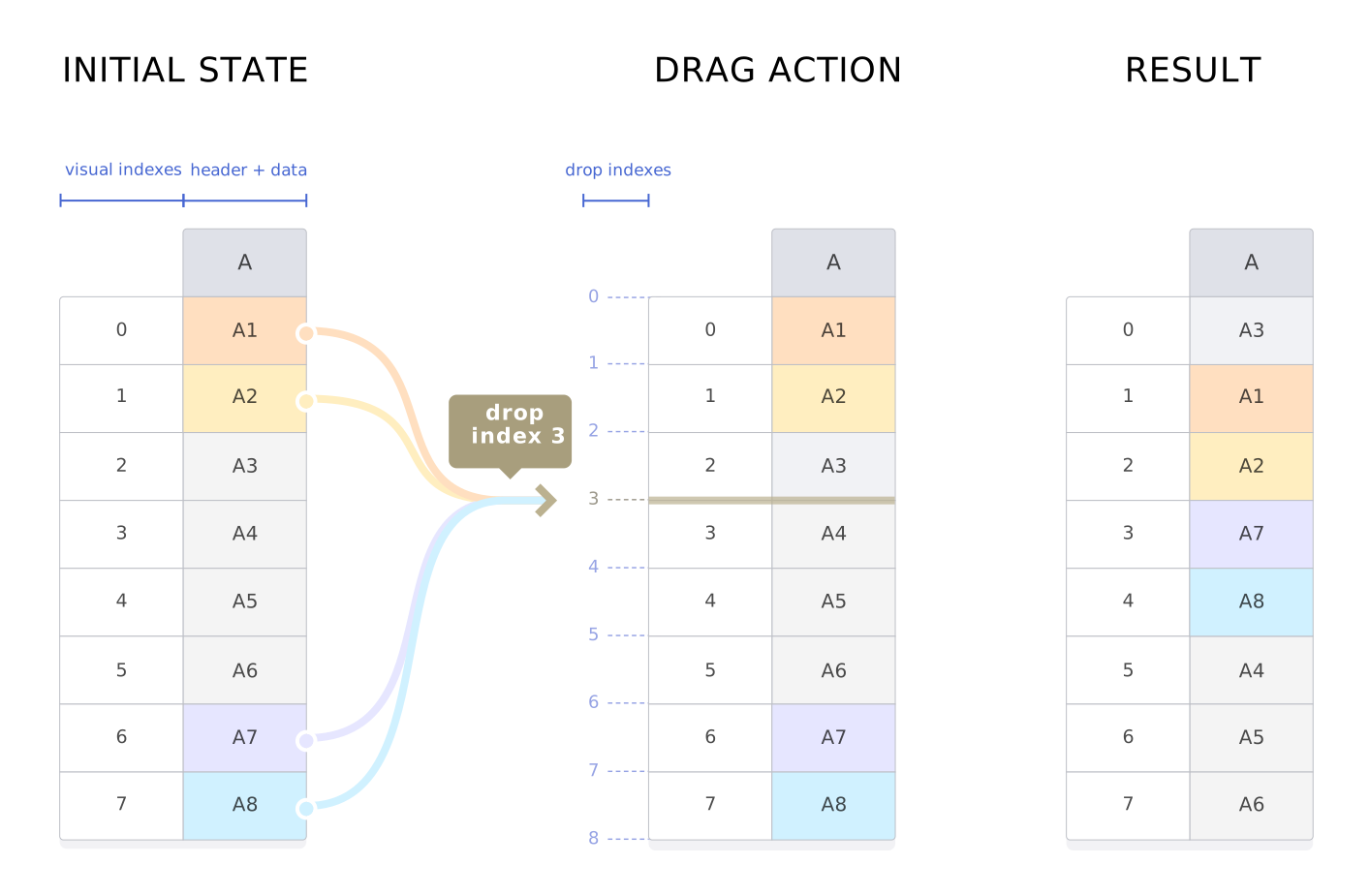
The moveColumns method has a finalIndex parameter, which points to where the elements will be placed after the moving action - finalIndex being the index of the first moved element.
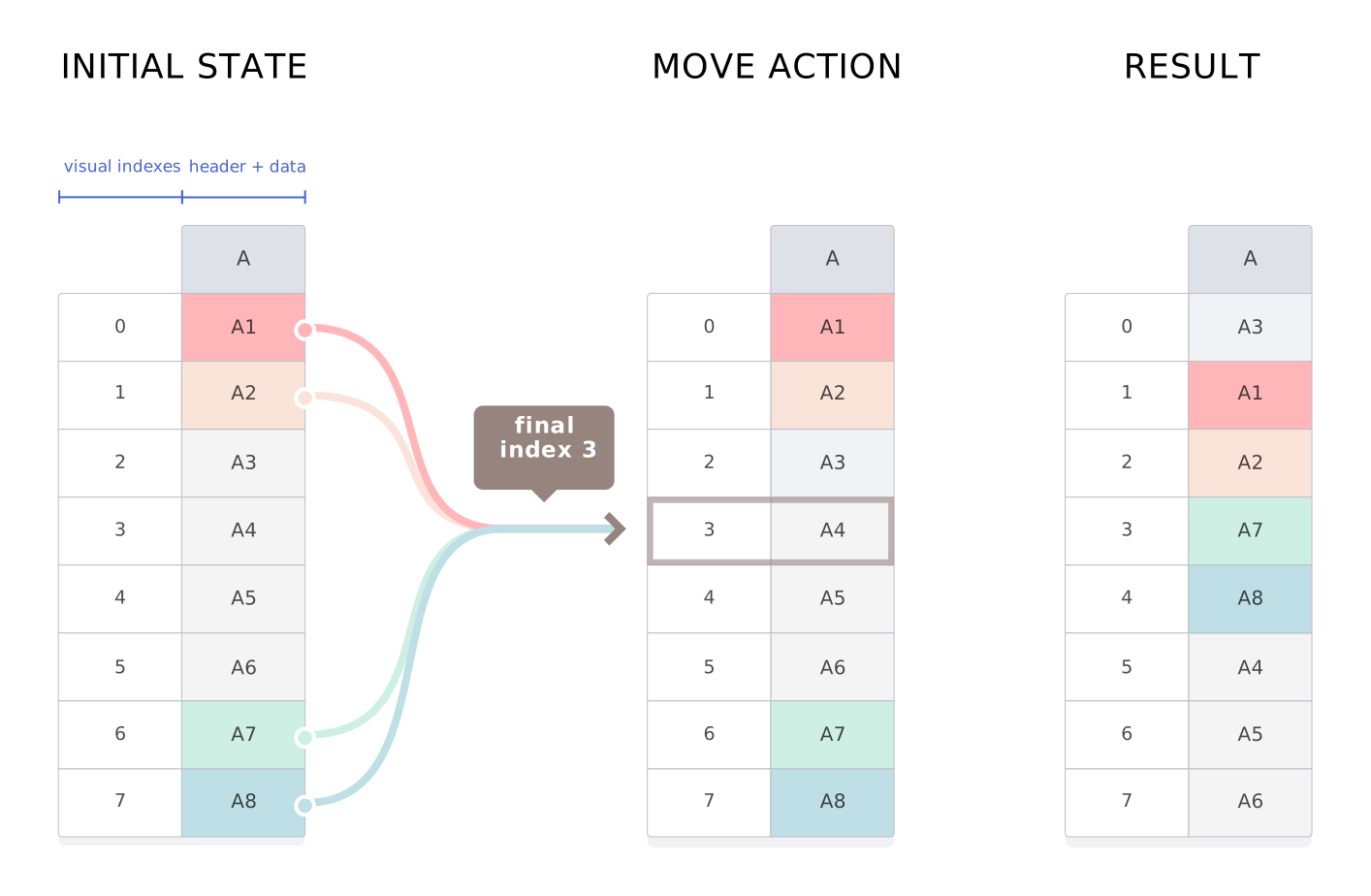
The moveColumns function cannot perform some actions, e.g., more than one element can’t be moved to the last position. In this scenario, the move will be cancelled. The Plugin’s isMovePossible API method and the movePossible parameters beforeColumnMove and afterColumnMove hooks help in determine such situations.
Related API reference
Configuration options
Core methods
Hooks
Plugins