

Clipboard
Copy data from selected cells to the system clipboard.
Overview
You can copy or cut data from Handsontable to the system clipboard, either manually (using the context menu or the Ctrl/Cmd+C/X shortcuts) or programmatically (using Handsontable’s API methods).
Copy & Cut
Copy & Cut actions allow exporting data from Handsontable to the system clipboard. The CopyPaste plugin copies and cuts data as a text/plain and a text/html MIME-type.
End-user usage
Available keyboard shortcuts:
- Ctrl/Cmd+C - copies the content of the last cell in the selected range
- Ctrl/Cmd+X - cuts the content of the last cell in the selected range
Available options in the browser’s toolbar:
Edit > Copy- copies the content of the last cell in the selected rangeEdit > Cut- cuts the content of the last cell in the selected range
To let the end user copy the contents of column headers, see the Copy with headers section.
Context menu
When the context menu is enabled, it includes default items, including copy & cut options.
- Copy - as a predefined key
copy - Cut - as a predefined key
cut
You can use them in the same way as the rest of the predefined items in the context menu. These operations are executed by document.execCommand().
/* file: app.component.ts */import { Component } from '@angular/core';import { GridSettings } from '@handsontable/angular-wrapper';
@Component({ selector: 'example1-clipboard', standalone: false, template: ` <div> <hot-table [data]="data" [settings]="gridSettings"></hot-table> </div>`,})export class Example1ClipboardComponent {
readonly data = [ ['A1', 'B1', 'C1', 'D1', 'E1'], ['A2', 'B2', 'C2', 'D2', 'E2'], ['A3', 'B3', 'C3', 'D3', 'E3'], ['A4', 'B4', 'C4', 'D4', 'E4'], ['A5', 'B5', 'C5', 'D5', 'E5'], ];
readonly gridSettings: GridSettings ={ rowHeaders: true, colHeaders: true, contextMenu: ['copy', 'cut'], height: 'auto', autoWrapRow: true, autoWrapCol: true };}/* end-file */
/* file: app.module.ts */import { NgModule, ApplicationConfig } from '@angular/core';import { BrowserModule } from '@angular/platform-browser';import { registerAllModules } from 'handsontable/registry';import { HOT_GLOBAL_CONFIG, HotGlobalConfig, HotTableModule } from '@handsontable/angular-wrapper';import { CommonModule } from '@angular/common';import { NON_COMMERCIAL_LICENSE } from '@handsontable/angular-wrapper';/* start:skip-in-compilation */import { Example1ClipboardComponent } from './app.component';/* end:skip-in-compilation */
// register Handsontable's modulesregisterAllModules();
export const appConfig: ApplicationConfig = { providers: [ { provide: HOT_GLOBAL_CONFIG, useValue: { license: NON_COMMERCIAL_LICENSE, } as HotGlobalConfig } ],};
@NgModule({ imports: [ BrowserModule, HotTableModule, CommonModule ], declarations: [ Example1ClipboardComponent ], providers: [...appConfig.providers], bootstrap: [ Example1ClipboardComponent ]})
export class AppModule { }/* end-file */<div> <example1-clipboard></example1-clipboard></div>Trigger copy & cut programmatically
First, select a cell range to copy or cut.
hot.selectCell(1, 1);Then use one of the following commands:
document.execCommand('copy')document.execCommand('cut')
The CopyPaste plugin listens to the browser’s copy and cut events. If triggered, our implementation will copy or cut the selected data to the system clipboard.
/* file: app.component.ts */import {Component, ViewChild, ViewEncapsulation} from '@angular/core';import { GridSettings, HotTableComponent } from '@handsontable/angular-wrapper';
@Component({ selector: 'example3-clipboard', standalone: false, template: ` <div class="example-controls-container"> <div class="controls"> <button id="copy" (mousedown)="copyBtnMousedown()" (click)="copyBtnClick()" > Select and copy cell B2 </button> <button id="cut" (mousedown)="cutBtnMousedown()" (click)="cutBtnClick()"> Select and cut cell B2 </button> </div> </div> <div> <hot-table [data]="data" [settings]="gridSettings"></hot-table> </div>` , encapsulation: ViewEncapsulation.None})export class Example3ClipboardComponent { @ViewChild(HotTableComponent, { static: false }) readonly hotTable!: HotTableComponent;
readonly data = [ ['A1', 'B1', 'C1', 'D1', 'E1'], ['A2', 'B2', 'C2', 'D2', 'E2'], ['A3', 'B3', 'C3', 'D3', 'E3'], ['A4', 'B4', 'C4', 'D4', 'E4'], ['A5', 'B5', 'C5', 'D5', 'E5'], ];
readonly gridSettings:GridSettings = { rowHeaders: true, colHeaders: true, outsideClickDeselects: false, height: 'auto', autoWrapRow: true, autoWrapCol: true };
copyBtnClick(): void { document.execCommand('copy'); }
cutBtnClick(): void { document.execCommand('cut'); }
copyBtnMousedown(): void { const hot = this.hotTable?.hotInstance;
hot?.selectCell(1, 1); }
cutBtnMousedown(): void { const hot = this.hotTable?.hotInstance;
hot?.selectCell(1, 1); }}
/* end-file */
/* file: app.module.ts */import { NgModule, ApplicationConfig } from '@angular/core';import { BrowserModule } from '@angular/platform-browser';import { registerAllModules } from 'handsontable/registry';import { HOT_GLOBAL_CONFIG, HotGlobalConfig, HotTableModule } from '@handsontable/angular-wrapper';import { CommonModule } from '@angular/common';import { NON_COMMERCIAL_LICENSE } from '@handsontable/angular-wrapper';/* start:skip-in-compilation */import { Example3ClipboardComponent } from './app.component';/* end:skip-in-compilation */
// register Handsontable's modulesregisterAllModules();
export const appConfig: ApplicationConfig = { providers: [ { provide: HOT_GLOBAL_CONFIG, useValue: { license: NON_COMMERCIAL_LICENSE, } as HotGlobalConfig } ],};
@NgModule({ imports: [ BrowserModule, HotTableModule, CommonModule ], declarations: [ Example3ClipboardComponent ], providers: [...appConfig.providers], bootstrap: [ Example3ClipboardComponent ]})
export class AppModule { }/* end-file */<div> <example3-clipboard></example3-clipboard></div>Mind that some of Handsontable’s selection-related methods don’t set focus on your grid automatically. To make sure that your grid is focused, call isListening() before you copy, cut or paste data.
Hooks
The CopyPaste plugin exposes the following hooks to manipulate data during copy or cut operations:
Examples of how to use them are provided in their descriptions.
Copy with headers
You can let the end user copy the contents of column headers, by enabling additional context menu items:
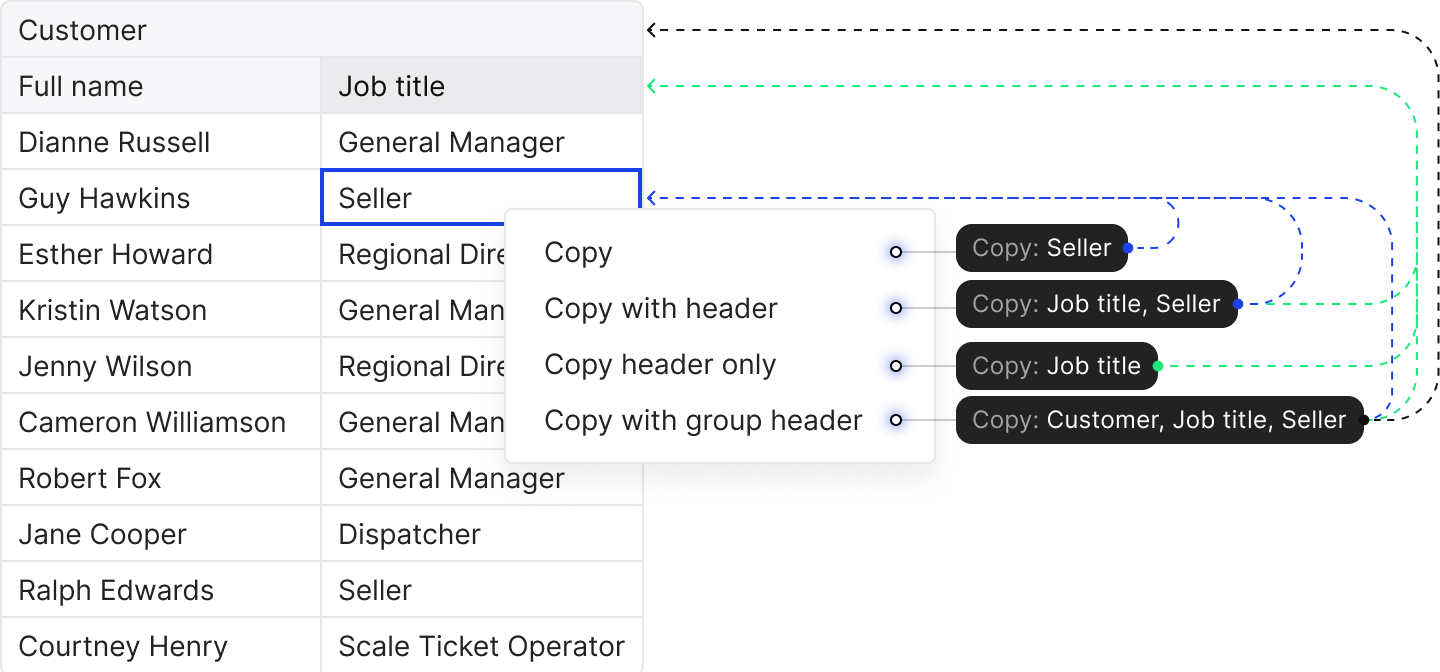
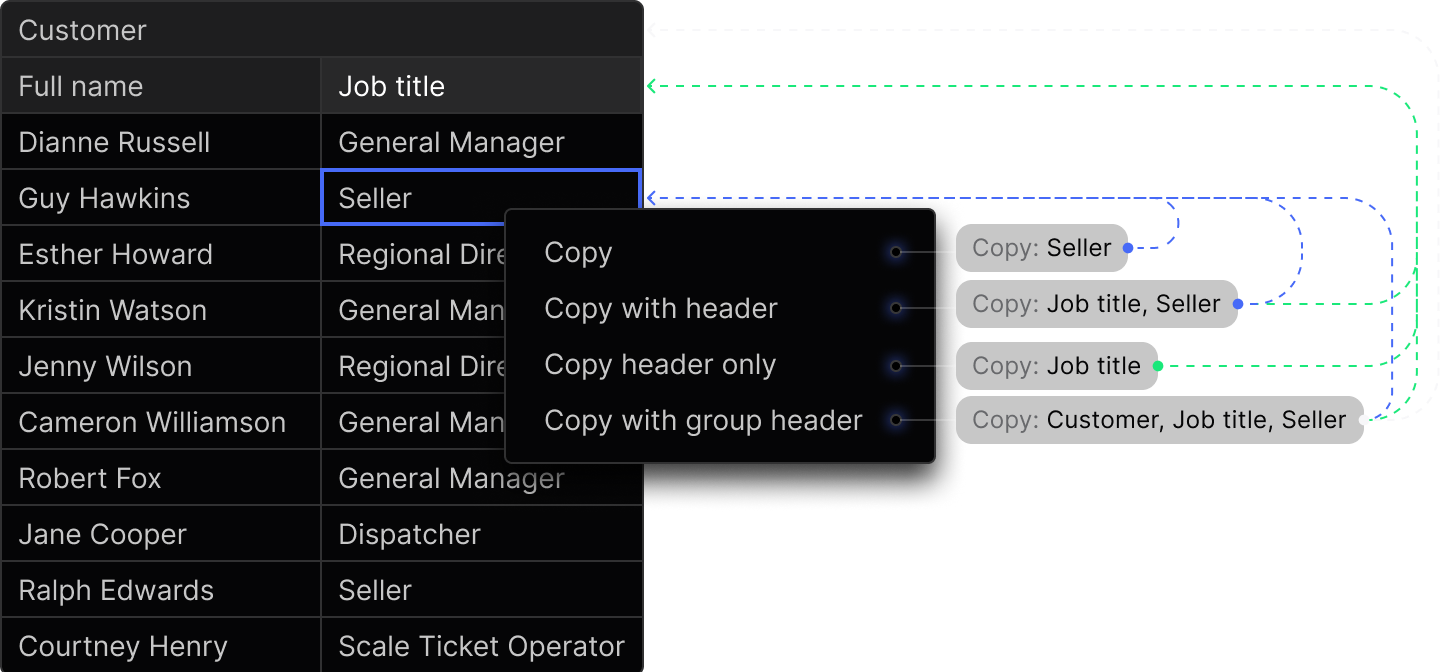
Right-click on a cell to try it out:
/* file: app.component.ts */import { Component } from '@angular/core';import { GridSettings } from '@handsontable/angular-wrapper';
@Component({ selector: 'example2-clipboard', standalone: false, template: ` <div> <hot-table [data]="data" [settings]="gridSettings"></hot-table> </div>`,})export class Example2ClipboardComponent {
readonly data = [ ['A1', 'B1', 'C1', 'D1', 'E1', 'F1', 'G1', 'H1', 'I1', 'J1'], ['A2', 'B2', 'C2', 'D2', 'E2', 'F2', 'G2', 'H2', 'I2', 'J2'], ['A3', 'B3', 'C3', 'D3', 'E3', 'F3', 'G3', 'H3', 'I3', 'J3'], ['A4', 'B4', 'C4', 'D4', 'E4', 'F4', 'G4', 'H4', 'I4', 'J4'], ['A5', 'B5', 'C5', 'D5', 'E5', 'F5', 'G5', 'H5', 'I5', 'J5'], ];
readonly gridSettings: GridSettings = { contextMenu: true, copyPaste: { copyColumnHeaders: true, copyColumnGroupHeaders: true, copyColumnHeadersOnly: true, }, colHeaders: true, rowHeaders: true, height: 'auto', nestedHeaders: [ [ 'A', { label: 'B', colspan: 2 }, { label: 'C', colspan: 2 }, { label: 'D', colspan: 2 }, { label: 'E', colspan: 2 }, 'F', ], ['G', 'H', 'I', 'J', 'K', 'L', 'M', 'N', 'O', 'P'], ], autoWrapRow: true, autoWrapCol: true };}/* end-file */
/* file: app.module.ts */import { NgModule, ApplicationConfig } from '@angular/core';import { BrowserModule } from '@angular/platform-browser';import { registerAllModules } from 'handsontable/registry';import { HOT_GLOBAL_CONFIG, HotGlobalConfig, HotTableModule } from '@handsontable/angular-wrapper';import { CommonModule } from '@angular/common';import { NON_COMMERCIAL_LICENSE } from '@handsontable/angular-wrapper';/* start:skip-in-compilation */import { Example2ClipboardComponent } from './app.component';/* end:skip-in-compilation */
// register Handsontable's modulesregisterAllModules();
export const appConfig: ApplicationConfig = { providers: [ { provide: HOT_GLOBAL_CONFIG, useValue: { license: NON_COMMERCIAL_LICENSE, } as HotGlobalConfig } ],};
@NgModule({ imports: [ BrowserModule, HotTableModule, CommonModule ], declarations: [ Example2ClipboardComponent ], providers: [...appConfig.providers], bootstrap: [ Example2ClipboardComponent ]})
export class AppModule { }/* end-file */<div> <example2-clipboard></example2-clipboard></div>To add the context menu items, configure the CopyPaste plugin with these options:
copyPaste: { copyColumnHeaders: true, copyColumnGroupHeaders: true, copyColumnHeadersOnly: true,}To copy column headers programmatically, call the copyPaste.copy() method with these arguments:
// access the `CopyPaste` plugin instanceconst copyPastePlugin = hot.getPlugin('copyPaste');
// select some cellshot.selectCell(1, 1);
// copy the selected cells along with their nearest column headerscopyPastePlugin.copy('with-column-headers');
// copy the selected cells along with all their related columns// headerscopyPastePlugin.copy('with-all-column-headers');
// copy the column headers nearest to the selected cells// (without copying the cells themselves)copyPastePlugin.copy('column-headers-only');Paste
The Paste action allows the importing of data from external sources, using the user’s system clipboard. The CopyPaste plugin firstly looks for text/html in the system clipboard, followed by text/plain.
Extending paste behavior
The parsePastedValue option controls how pasted content is written to cells when the user pastes from the clipboard into Handsontable (e.g. from another Handsontable instance or between cells in the same table). It does not affect how other applications read or process the clipboard.
By default (parsePastedValue: false), pasted content is written as plain strings. Non-scalar values such as objects are coerced to string (e.g. an object becomes "[object Object]"), which keeps the data model simple and avoids parsing clipboard text. Set parsePastedValue: true when you need to preserve JavaScript structures across paste: pasted text is then parsed (e.g. JSON-like content) and the resulting values are written to the data source, so you can copy and paste objects or arrays between cells or between instances. With parsing enabled, schema validation is relaxed so object-based values can be pasted into cells that would normally expect a scalar.
End-user usage
Available keyboard shortcuts:
- Ctrl/Cmd+V - paste the content into the last cell in the selected range
Available options in the browser’s toolbar:
Edit > Paste- paste the content into the last cell in the selected range
Context menu
Due to security reasons, modern browsers disallow reading from the system clipboard. Learn more
Trigger paste programmatically
Due to security reasons, modern browsers disallow reading from the system clipboard. Learn more
Hooks
The CopyPaste plugin exposes the following hooks to manipulate data during the pasting operation:
Examples of how to use them are provided in their descriptions.
Known limitations
- The
CopyPasteplugin doesn’t copy, cut or paste cells’ appearance. - The data copied from Handsontable will always remain as plain text. For example, if you copy a checked checkbox, the input will be kept as the value of
'true'. document.execCommandcan be called only during an immediate-execute event, such as aMouseEventor aKeyboardEvent.- Clipboard operations don’t work in Chrome 133+ with Handsontable 14.6.0, 14.6.1, or 15.0.0. Update to 14.6.2 or 15.0.1+. See the incident announcement for details.
Related keyboard shortcuts
| Windows | macOS | Action | Excel | Sheets |
|---|---|---|---|---|
| Ctrl+X | Cmd+X | Cut the contents of the selected cells to the system clipboard | ✓ | ✓ |
| Ctrl+C | Cmd+C | Copy the contents of the selected cells to the system clipboard | ✓ | ✓ |
| Ctrl+V | Cmd+V | Paste from the system clipboard | ✓ | ✓ |
Related blog articles
Related API reference
Configuration options
Core methods
Hooks
Plugins